Connect WeCom Calendar in TodoNote to turn upcoming events into tasks. Add preparation tasks yourself and arrange them beside your appointments. The WeCom integration appears when your TodoNote time zone currently has a UTC+8 offset.
Lin has a 15:00 handover in WeCom. Before it starts, she needs to check an inventory sheet. Putting the preparation next to the event makes it visible in her plan while the rest of the team continues to use WeCom.
Connect one calendar first
In WeCom, open Calendar and find the option to sync with another calendar. Get the account and calendar sync password shown there. In TodoNote, open Integrations, choose WeCom Calendar, test the connection and save one selected calendar.
If the integration is missing, open TodoNote’s settings and check the current offset of your selected time zone. After saving, you can use Sync now and check the last sync time. Start with a calendar whose upcoming events you can recognize quickly.
Work through one handover day
| Entry | Where it comes from | What to do next |
|---|---|---|
| 15:00 handover | WeCom Calendar | Open the matching task for your own notes |
| Check stock discrepancies | Task you create | Plan it before the session |
| Send the follow-up list | Task you create | Schedule it for the next workday |
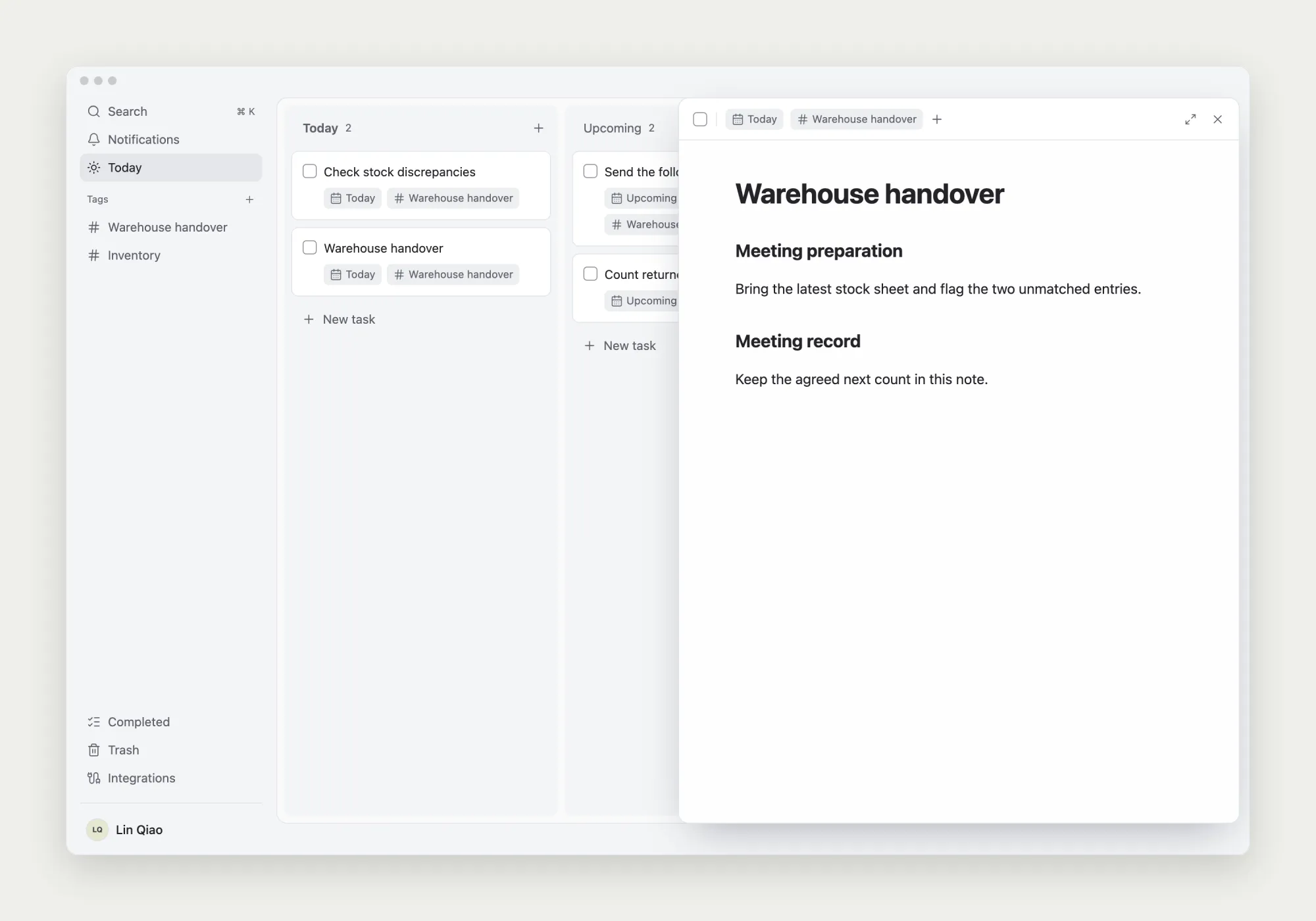
For an appointment to appear, it needs to be in the selected calendar and within the upcoming sync window. A meeting from another calendar can be missing even when the last sync succeeded.
Move an event and check the result
Move a test event in WeCom and sync again. The time on its imported task follows the source event. The note you edit and the completion state stay in TodoNote. Independently created preparation tasks keep their own dates.
A useful day-one check is whether you can see an upcoming appointment and know what to do before it. Open the event task from the board and record the one detail you want to have at hand.
The handbook lists the current sync window and how to pause or disconnect a calendar. For a busy calendar, check the window and your account allowance before adding more calendars.
Decide what belongs in your calendar and what belongs in your task list
References · Turn calendar events into tasks · Set dates and plan your work